To factory reset a Hisense TV without the remote, hold the physical power button on the TV for 15 seconds while it's plugged in — this triggers a forced reboot on most VIDAA models. For Hisense Roku TVs, use the recessed reset pinhole on the back of the TV. For Google TV and Fire TV models, plug in a USB keyboard and navigate to Settings → System → Reset.
Before you reset — try this first
Factory reset wipes ALL of your settings: Wi-Fi passwords, account logins, TV calibration, every streaming app's saved state. If you're resetting because something's broken, a power cycle is much less destructive:
- Unplug the TV from the wall.
- Hold the TV's physical power button for 30 seconds.
- Plug back in.
- Press the physical power button to turn on.
VIDAA Smart TVs (U-series, ULED)
VIDAA TVs don't have a physical reset button — only a power button. The reset has to happen through the menu.
Option 1: USB keyboard
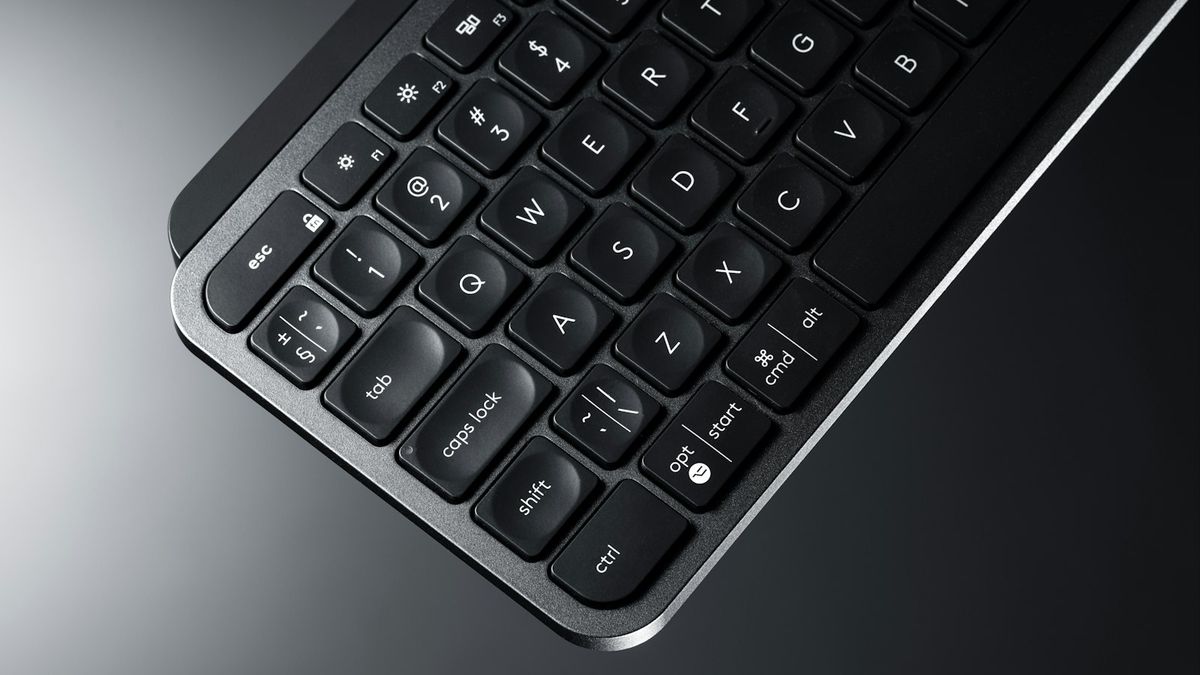
- Plug a wired USB keyboard into the TV's rear USB port.
- Power the TV on.
- Use arrow keys to navigate to Home → Settings (gear icon).
- Navigate: System → Reset → Factory data reset.
- Confirm with Enter.
- Wait 5-10 minutes. The TV reboots into the initial setup screen.
Option 2: Phone app
If your TV is already on Wi-Fi, install the phone remote app, pair, and use it to navigate to Settings → System → Reset.
Hisense Roku TV (R6, R7, R8 series)
Roku TVs have a hidden reset pinhole on the back — the unique trick.
- Find the small pinhole on the back of the TV. It's labeled "RESET" or has a small recessed dot. Usually near the HDMI ports.
- Insert a paperclip or SIM tool.
- Press and hold for 20 seconds while the TV is on.
- The TV reboots and starts the initial Roku setup process.
Hisense Google TV / Android TV
Google TVs follow Android conventions. There's no hardware reset button on most models.
- Plug a wired USB keyboard in.
- Power on the TV.
- Navigate: Settings → System → About → Reset.
- Select "Factory data reset" and confirm.
- Wait 5–10 minutes for the reset to complete.
Recovery mode (advanced)
For Hisense Google TVs that won't boot at all: Unplug. Hold Power button. While holding, plug back in. Keep holding for 30 seconds. The TV may boot into Android recovery mode.
Hisense Fire TV (2024+ models)
- Plug a wired USB keyboard in.
- Power on TV.
- Navigate: Settings → My Fire TV → Reset to Factory Defaults.
- Enter your PIN if you set one (default is your Amazon account PIN, or just confirm).
- The reset takes about 10 minutes.
FAQ
Where is the reset button on a Hisense TV?
On Hisense Roku TVs (R6/R7/R8), there's a small pinhole on the back labeled RESET. On VIDAA, Google TV, and Fire TV models, there is no dedicated reset button — use a USB keyboard or the phone app.
How long does a factory reset take?
5-10 minutes for VIDAA. 10-15 minutes for Roku TVs. Up to 20 minutes for Google TVs.
Will factory reset fix a Hisense TV that won't turn on?
No — factory reset requires the TV to be on. See Hisense TV won't turn on guide.