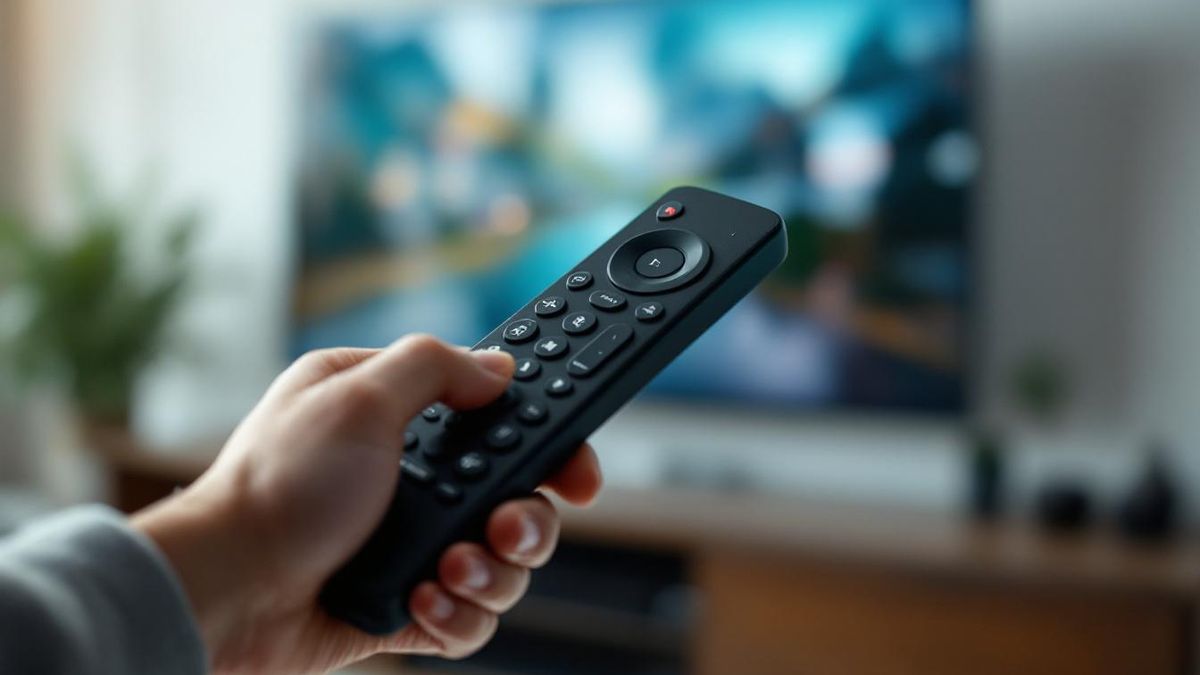
If your Hisense TV remote isn't working, the cause is almost always one of seven things — and six of them you can fix in under a minute without buying anything. The seventh is "the remote is genuinely dead," and even then, you don't have to sit through nothing-on-TV until a replacement ships.
All three remotes have stopped working at some point. Twice it took me 10 seconds to fix. Once it took a power cycle. The third time, a $25 universal remote replaced the dead unit. Here's the order I check things in, fastest first.
The 30-second test before you do anything else
Point your phone's camera at the front of the remote and press any button. If you see a small red or purple light flashing on your phone screen (you won't see it with your eyes — only the camera picks it up), the remote's IR transmitter is alive. The problem is at the TV, in the pairing, or in the network — not the remote.
If you don't see a light, the remote is dead or the batteries are dead. Skip to fix #1.
Note: this test only works for IR remotes. Some Hisense remotes — like the U7K voice remote and most Roku enhanced remotes — use Bluetooth, not IR, and won't show anything in the camera. For those, see fix #4 (re-pair).
Fix 1 — Replace the batteries (yes, really)
This sounds patronizing, and it's the #1 cause anyway. Two notes most people miss:
- Don't re-use one fresh battery and one old one. Hisense remotes draw enough current that one weak cell drags down the working one within a week. Both new, same brand, same date.
- Check the contacts. If you see green or white powder, that's leaked alkaline. Wipe with a cotton bud and a little white vinegar, let it dry, then put fresh batteries in.
- AAA, not AA. Most Hisense remotes take AAA. The voice-mic ones take a single CR2032 button cell — easy to forget, easy to grab the wrong one.
If the camera test now shows the IR light, you're done.
Fix 2 — Hard reset the remote
If the batteries are good but the remote still doesn't respond, try this:
- Take the batteries out.
- Press and hold the Power button for 15 seconds. (This drains the leftover charge in the remote's capacitors.)
- Put fresh batteries back in.
- Try the remote.
For Roku TV remotes specifically, hold the Home button for 5 seconds while the batteries are out — that does the same job and resets the pairing memory. Sometimes that alone fixes it.
Fix 3 — Check the TV's IR sensor isn't blocked
Hisense's IR sensor is usually a small dark window in the center bottom of the bezel (VIDAA U-series), or just under the Hisense logo (older models). On Roku TVs it's the small recessed dot to the right of the Roku logo.
Things that block it:
- A new soundbar in front of the TV
- A cat
- A "screen protector" film someone installed
- Sunlight from a south-facing window at certain times of day (sounds bizarre, happened to me — direct sunlight can saturate the IR sensor and make it ignore the remote)
If you've moved furniture around or just installed a soundbar, that's almost certainly your problem.
Fix 4 — Re-pair Bluetooth remotes
If you have a voice-mic remote (most U7K, U8K, U8N, U9K, U7N, U7H, U8H units), it's Bluetooth. Bluetooth pairings get unstable, especially after a TV firmware update.
On VIDAA TVs: Hold Home + Back on the remote for 5 seconds. The remote LED should blink rapidly. The TV should show a "Pairing" prompt — confirm. Done.
On Hisense Roku TVs: Open Settings → Remotes & devices → Set up a new device → Voice Remote. Hold the pairing button on the remote (small button in the battery compartment) for 5 seconds.
On Hisense Google TV: Settings → Remotes & accessories → Pair remote. Hold Home + Back for 5 seconds.
This fixes about 1 in 4 cases for me — particularly after a firmware update or a power outage.
Fix 5 — Power-cycle the TV (the unplug, not the standby)
Standby isn't off. To genuinely reset a Hisense TV's remote service:
- Unplug the TV from the wall.
- Hold the TV's physical power button for 30 seconds.
- Wait another 30 seconds.
- Plug back in.
That 30-second hold drains the residual charge in the power board and forces the firmware to do a clean boot. After this, the remote often starts responding immediately.
Fix 6 — Update the TV's firmware
Hisense pushes firmware updates that have, in the past, broken remote responsiveness — and then later updates have fixed them. To update: VIDAA: Settings → System → Software Update. Roku TV: Settings → System → System update → Check now. Google TV: Settings → System → About → System update.
If your remote is so dead you can't even reach the menu, you can run the update through the phone remote app (free, pairs over Wi-Fi).
Fix 7 — Hard reset the TV
Last resort before assuming the remote is dead. This wipes all your settings — only do this if 1–6 didn't help.
- VIDAA: Settings → System → Reset → Factory data reset
- Roku TV: Settings → System → Advanced system settings → Factory reset
- Google TV: Settings → System → About → Reset
When the remote is genuinely dead
If you've done 1 through 7 and the remote still doesn't respond, your options:
Replace it. Original Hisense remotes are varies on Amazon, search by your model number on the back of the TV. Universal remotes are varies — see our full list of Hisense universal remote codes.
Use your phone instead. The Hisense phone remote app does everything the original remote does plus a few extras (a real keyboard for typing in passwords, a touchpad). It's free, takes 30 seconds to pair, and runs over your home Wi-Fi.
I never went back to a physical remote.
FAQ
Most likely the remote needs to be re-paired (if it's Bluetooth) or the IR sensor on the TV is blocked. Run the phone-camera test in this article — if you see no light, even the IR transmitter is dead.
How do I reset a Hisense TV remote?
Take the batteries out, hold Power for 15 seconds, put fresh batteries back in. For Bluetooth remotes, also hold Home + Back for 5 seconds to clear the pairing.
Red light flashing usually means low batteries (replace them) or pairing in progress.
Can I control a Hisense TV without the remote at all?
Yes — using the TV's physical button, a USB keyboard, the phone remote app, or a universal remote.